![Syzl Logo.png]](https://my.syzl.io/hs-fs/hubfs/Syzl%20Logo.png?height=40&name=Syzl%20Logo.png)
Steps to Connect Your Calendar
- Log in to your Syzl account.
- Click Me in the top-right corner of the page.
- Under Syzl Account, select Edit/Add Listing.
- Click the listing you want to sync a calendar with.
- Scroll to the Book section (bottom-right of the page).
- Scroll down to Calendar and Payments.
- Select Google or Outlook and authorize Syzl to access your calendar.
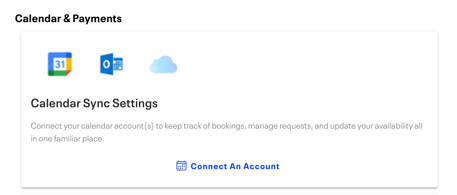
- Once authorized, use the "Add booking events to" dropdown to choose which calendar your Syzl bookings will appear on.
- Use the "Check for availability" dropdown to select which calendar Syzl should cross-reference when determining your kitchen's availability
What Happens After You Sync
When a maker submits a booking request, it will appear in your connected calendar as a requested event. The event stays in a requested state that does not block other events or requests until you accept or decline through the Syzl website.
Important: You cannot accept or decline a booking directly from your calendar.
All booking actions must be taken on the Syzl website
Frequently Asked Questions
Which calendars are supported? Google Calendar and Outlook.
Can I sync different calendars for bookings vs. availability? Yes. You can choose multiple calendars for availability checks such as Holidays, Work Schedule, Personal etc.
What if I decline a booking? The requested event will be removed from your calendar.
Do I need to re-sync if I add a new listing? Yes. Calendar sync is configured per listing, so you'll need to repeat these steps for each listing you want connected.